
The way in which you present your slideshow video to your audience is just as important as the effort you put into creating it. In this article we’ll outline the top 5 ways to show off your slideshow video and make it a spectacular success!
1: Consider the Size of Your Audience and the Venue
The size of your audience matters as does the location. Here are some guidelines to consider:
- For a handful of people that can gather around you, a laptop computer or larger format tablet should suffice. The advantage of using a computer or tablet is that it has video player software already installed, making it quick and easy to access your slideshow video.
- For a slightly larger group of people, perhaps as many as a few dozen, a TV 55″ or larger should suffice. Many TVs have weak speakers so if you have slideshow music as part of your video, a sound bar might be a good addition.
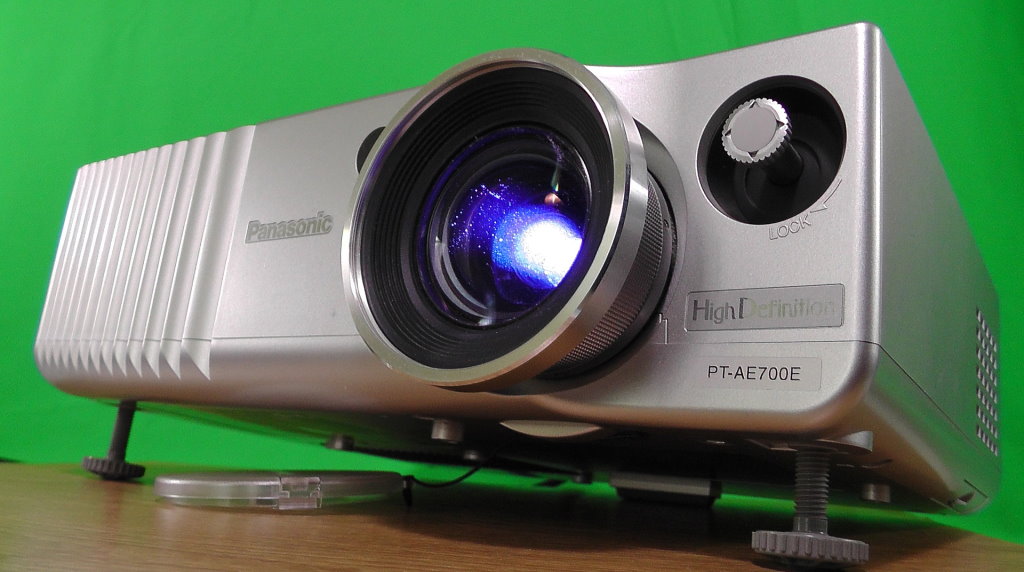
- For larger gatherings of 75-100 people or more, or one that may be held outside in a park or large backyard, a projector and screen will likely be required. Keep in mind many projectors do not have speakers (or like TVs, some have only weak speakers built in), so a set of external powered speakers may be required for the slideshow music.
2: Download Your Video
The online service you use to create your slideshow video will likely have a way to play your video so you can quickly see the results. Most services also allow you to download your video to your computer. The advantage of downloading the video is you can have a permanent copy that’s yours to keep forever and is also the highest quality version of the video since it’s the original. Be sure to save a copy somewhere for safe keeping.
3: Staging Your Video for Showing
Thanks to recent technology, there are many different ways for you to stage your video for showing. Here are a few ideas:
- Laptop: Once you have downloaded the video slideshow onto your hard drive, you can open the file and view it any time you wish. Most modern laptops have an HDMI port that can be connected with a cable to a large screen TV or projector as well. The advantage of this method is that there is no internet connection required. It’s also the best way to present the highest quality version of your video.
- Thumbdrive: A low tech but effective approach to showing your video is to put the video on a thumbdrive. Most modern smart TVs and many projectors have a USB port that you can put the thumbdrive into and play directly from the TV or projector. Like the laptop, the advantage of this is that you don’t need an internet connection to watch your video. And just as when playing it from a laptop, it presents the highest quality version of your video.
- Google Drive: By setting up a free Gmail email account, you’ll automatically be given 15GB of online storage in Google Drive. Google Drive is a great place to upload your video which will allow you to stream it from anywhere there is an internet connection. The only downside is that Google recompresses the video and even when playing it back a 1080p (the highest definition setting), you may notice the video is not as crisp as the original.
- Dropbox: You can setup a free Dropbox account which gets you 2GB of online storage for free, which should be enough to store a 10-15 minute video slideshow with room to spare. Dropbox has an integrated video player which allows you to play your video anywhere you have an internet connection and access to a web browser. There is also an app which allows easy access from your iPhone or Android phone. Dropbox tends to keep a higher quality version of the video than Google Drive, so this is a good choice if you want the highest quality online streaming option.
Whatever option you choose for staging your slideshow video, it’s very important to always have a backup plan! If you use an online option to show your video, make sure you also have a copy of the video on a thumbdrive (or bring your laptop and an HDMI cable) and vice versa. Internet connections go down unexpectedly and thumbdrives sometimes become corrupt. There’s never a good time for technology to fail so always make sure you have a backup plan in case it does.
4: Determine the Best Video Player Settings
This one seems obvious, but make sure to test play your video in the setting you will be showing it. Here are some tips to make sure your slideshow video looks the best it possibly can:
- If showing your video on a laptop or TV, make sure the brightness is set optimally as well as the color in case of a TV. While most TV’s automatically adjust to the optimal resolution based on the video, you may have to make that adjustment manually to ensure the video takes up the entire width of the TV or laptop screen.
- If showing your video on a projector, make sure all the same settings you checked for the laptop or TV are checked on the projector as well. In addition, ensure the projector is in focus and as much of the screen is used without any of the video being cut off.
- If you are planning to stream your video from Google Drive, Dropbox, or another online service, be aware of the streaming settings. For example, when streaming from Google Drive, at the bottom right of the player you will see a cog icon. Make sure to click that and set your streaming mode to HD or 1080p. This will give you the highest quality playback of your video which is especially important when playing on a large device like a big screen TV or projector.
- Another consideration with streaming your video is the internet connection speed. If you are in an area with a slow internet connection, you may experience video that pauses and buffers which will lead to a bad experience for your audience. In that case, switch to your backup plan of using a thumbdrive or your laptop. You did prepare for such an emergency, right? 🙂
- One last word on video streaming: Once you upload your video, Google Drive, Dropbox, etc. has to go through an encoding process to generate a final high definition version of your video. Until that process completes, you may notice your video looks pixelated or low-resolution. This is normal, but it’s important that you get your video staged a day or two ahead of when you intend to show it to ensure the video plays back at the highest resolution possible. That said, the quality of the video when streamed online will usually be lower than that of a video shown on a laptop, TV, or projector.
5: Showtime!
If you’ve completed the previous 4 steps, you should be well prepared when the time comes to show your video to your audience. If indoors, it might be a good idea to dim the lights a bit or close your blinds so your audience can see the laptop, TV screen, or projector screen better. Make sure you’ve turned up the speakers to a level everyone in the room can hear clearly. Turn off any other background noise in the room that may be on. And finally, enjoy the hard work you put into creating a memorable video slideshow for the occasion!